How to Manage PDF Files for Everyday Tasks
Merge, split, rotate or convert PDFs—and check the result.
October 20, 20265 min read
How to get started
1. Keep a backup
Save a copy of the original before changing a file.
2. Choose one task
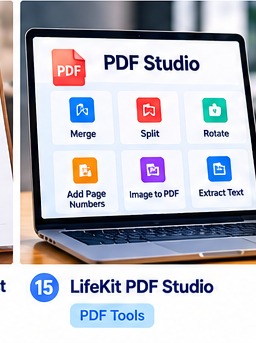
Select merge, split, rotate, page numbering or text extraction.
3. Check the result
Review page order, orientation and missing content.
4. Understand conversion limits
PDF-to-Word may change spacing and tables. Scans may need OCR.
5. Protect private files
Read the tool’s processing information before using confidential documents.
Example
To combine application documents, arrange copies in the required order, merge them and open the final PDF to verify every page.
Helpful reminder: This guide is general information. Confirm important requirements with the relevant official source. Tool results may be incomplete and do not guarantee a particular outcome.
Frequently asked questions
Will PDF-to-Word preserve the exact layout?
Not always; conversion can change formatting.
Can scanned PDFs be extracted as text?
OCR may help, but it can make recognition errors. Review the result.